“YouTube landscape” · 16:9
- 1920×1080, at 24, 25, 30 or 60 frames per second
- Ideal for tutorials, reviews, stories and voice-over videos
- Vertical clips fit with a blurred or color background
 GhostPegby Ghost Creator Pro
Free YouTube editor
Build your vertical Shorts or 16:9 landscape videos in the browser: cut, add titles and subtitles, record your voice and download in 1080p, with the thumbnail ready to upload.

You can change format whenever you want: text and overlays reposition themselves.
When the export finishes, click “Download thumbnail”:
YouTube requires a verified account to upload custom thumbnails.
In Text → Subtitles you type each line or import an .srt file. They show in the video with the style you pick (and you can apply it to every line in one tap).
If you would rather have YouTube show them as captions viewers can turn on and off, click “Export SRT” and upload it in YouTube Studio → Subtitles → “Upload file” → “With timing”.
The web editor does not transcribe your voice automatically: you type or import the subtitles. GhostPeg for Windows does add animated subtitles to the videos it creates.
For tutorials, reviews and explainer videos.
Pick your microphone, count 3-2-1, listen to the take and, if you like it, it goes to the Voice track. If not, retake it.
“Music ducks when someone speaks”: you choose how low the music goes while your voice plays.
Raise or lower each track (0 to 200%), mute a clip’s original sound and add GhostPeg’s own sounds.
The web editor is free up to 3 minutes per video, with a small mark in a corner. If your channel posts longer videos you have two paths:
For a regular video, 16:9 landscape at 1920×1080 (in the editor: “YouTube landscape”). For a Short, 9:16 vertical at 1080×1920 (in the editor: “Reels / Shorts”). You can choose 24, 25, 30 or 60 frames per second.
Yes. Choose “Reels / Shorts”: the editor marks the area covered by the Shorts buttons and you download the video at 1080×1920, free up to 3 minutes per video.
In the editor, under Text → Subtitles, click “Export SRT”. In YouTube Studio open your video, go to Subtitles, choose the language, “Upload file” and “With timing”, and select the .srt file.
Yes. After exporting, “Download thumbnail” lets you pick the frame, add a big title at the top, middle or bottom and download a 1280×720 JPG, the size YouTube uses.
Up to 3 minutes per video in the web editor, with a small mark. For longer videos GhostPeg Pro is coming soon; and GhostPeg for Windows already edits your videos with no length cap, with a watermark on Free.
YouTube and YouTube Shorts are trademarks of Google LLC. GhostPeg is not affiliated with or sponsored by YouTube.
With AI, on your PC: GhostPeg for Windows · getting started with the web editor

Free, no subscriptions and no credit card. On your phone, tablet or computer.
Free in your browser or on your Windows PC.
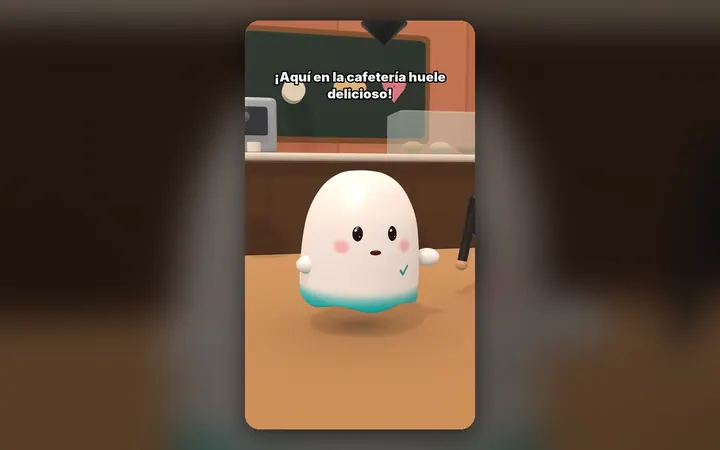
Your characters talk with their own voice and move around their world, on your PC.
See the 3D maker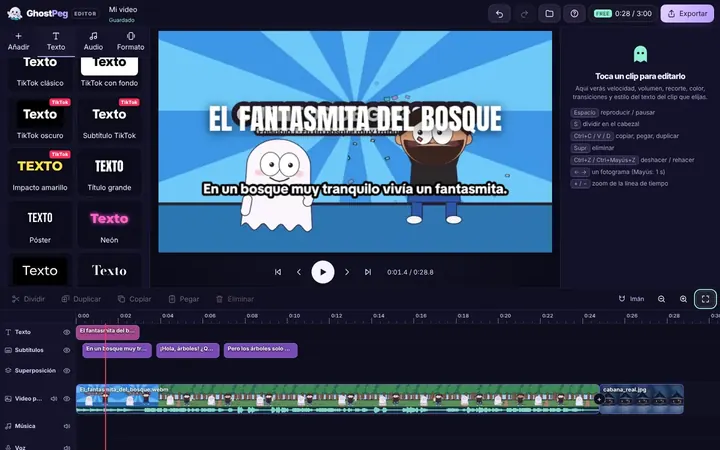
Free on your phone, tablet or computer, with nothing to install.
See the free editor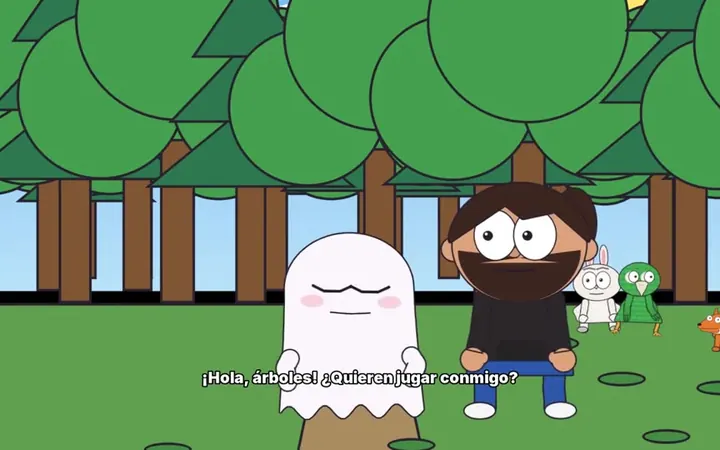
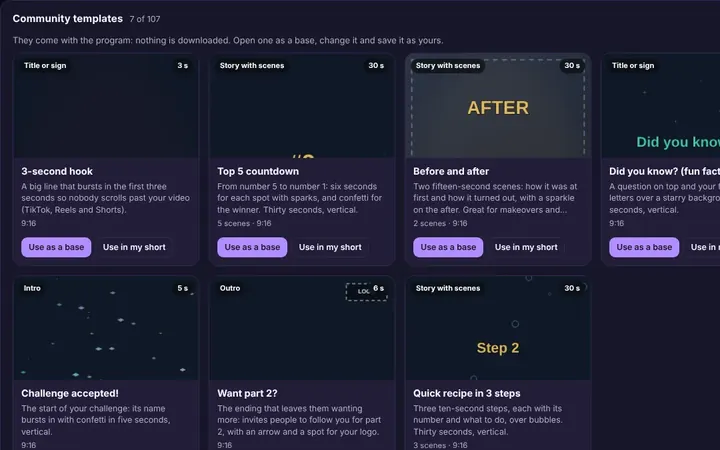
Tutorials and templates from other creators to use as a starting point.
Browse templates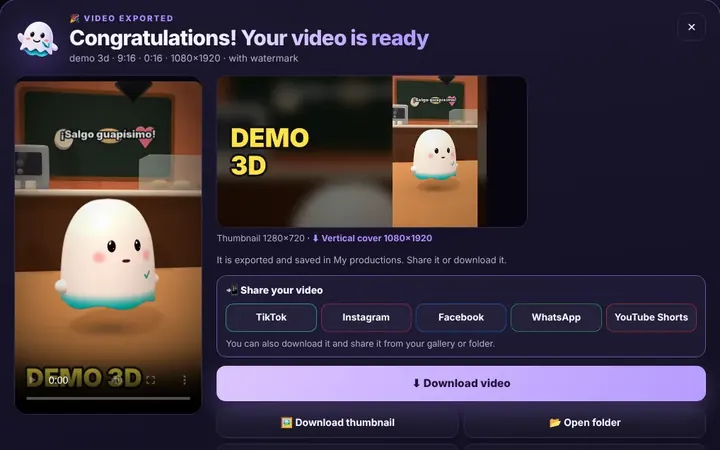
TikTok, WhatsApp, Instagram or Facebook from the same box, or download it.
Download free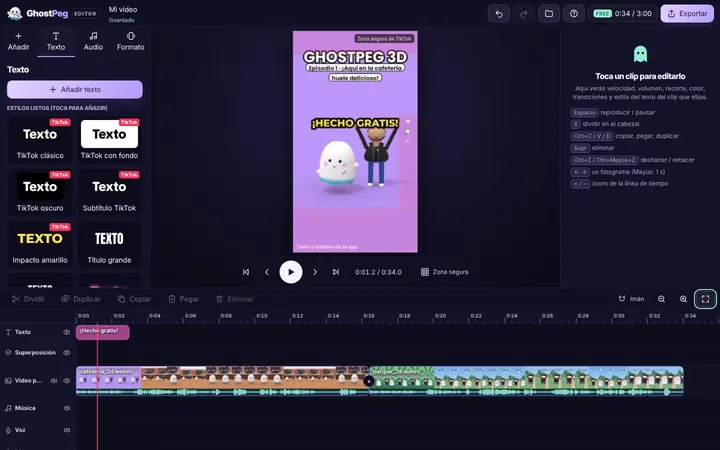
Ready for TikTok, Reels and Shorts, with your own channel in the community.
Visit the community